
Note: the following process should be followed for both 8” and 10” iProda Android tablets
Before beginning the tablet provisioning process, make sure you have the iProda Tablet powered on and connected to your PC via a USB cable.
Also make sure that you have the iProda Tablet Flashing Tool program (flash_tool.exe) on your PC.
Additionally, you will need a paper clip or other thin wire.
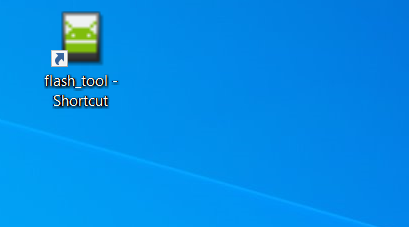
Step 1: Open and Configure the Flash Tool
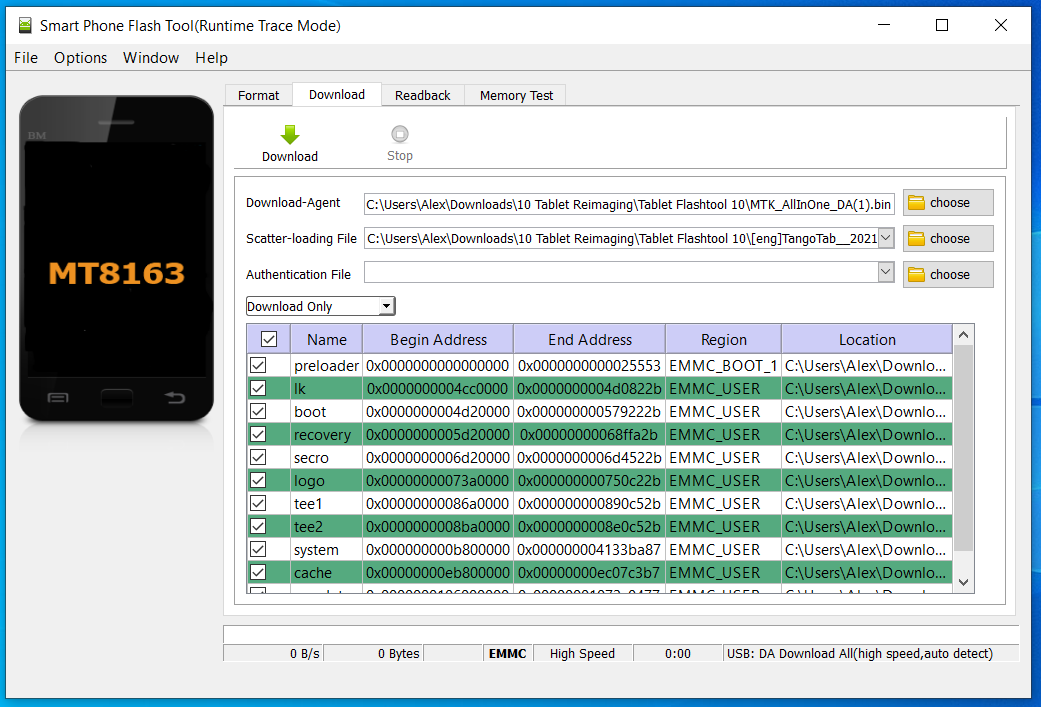
The Flash Tool needs two files in order to run, the Download Agent and the Scatter-Loading File. They should be preset in the first two fields. If they aren't, you will need to select them manually:
- The Download Agent file should be set to MTK_AllInOne_DA(1).bin, which should be in the tool's directory.
- Depending on if you are reimaging an 8" or 10" tablet, you will need a different Scatter-Loading File:
- If you are reimaging a 10" tablet, the file should be set to MT8163_Android_scatter.txt, which will be in a folder called
- If you are reimaging a 10" tablet, the file should be set to MT8163_Android_scatter.txt, which will be in a folder called [eng]TangoTab__20210623-1427 in the tool's directory.
The third field can be left blank.
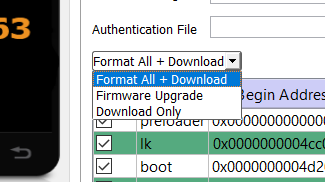
Once this is done, click on the drop-down menu below the fields, and select the Format All+Download option.
Step 2: Flash the tablet
With the tablet plugged in to your PC, locate the small hole on it's left side, below the connectors. Using a paperclip or other thin wire, press the button inside the hole to reset the tablet.
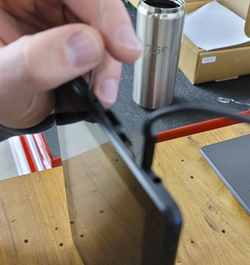
Wait for two seconds, then on the Flash Tool on your PC, click the Download button in the upper left corner.
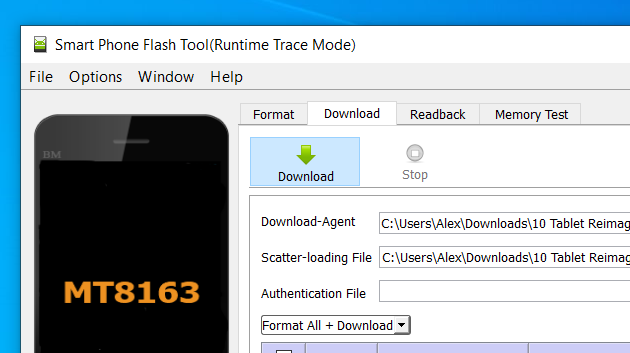
At this point, the bar on the lower edge of the window should begin to load with a red color, followed again by green, purple, and yellow, indicating the different components of the flashing process taking place.
Note: if the bar does not change color, or if you receive a pop-up error message, then the Download button was not hit quickly enough after releasing the reset button on the tablet. You can try closing the pop-up and clicking the Download button again.
If the process is successful, a pop-up window with a green check-mark will appear.
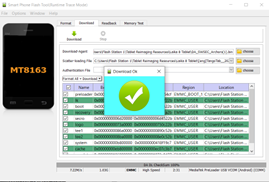
At this point, the reimaging process is complete. If this tablet is being provisioned, you can now begin the Tablet Provisioning process.
Comments
0 comments
Please sign in to leave a comment.